Sunday, February 26, 2012

iPad 3 Display: A Possible Peek


The screen in Apple’s next-generation iPadis said to be a standout feature of the tablet, and an analysis of what is purportedly one of those new screens supports the growing expectations.
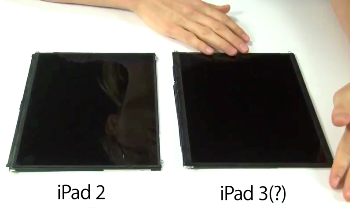
Repairs website iFixit analyzed a screen obtained obtained earlier this month byMacRumors, which says the screen is that of an iPad 3, and confirms the unit has double the resolution of the iPad 2 screen.
An iPad 3 announcement is expected on March 7, and several leaks of the display indicate it will have double the resolution of the iPad 2. iFixit's analysis, available as a video, is of note because the people behind the online teardowns of most new gadgets are verifying the quality of the display. MacRumors isn't saying how it obtained the screen, but claims it is from an iPad 3.
Put under the microscope, the alleged iPad 3 display has double the linear resolution of the iPad 2 -- from 1024 by 768 pixels to 2048 by 1536 pixels -- which is higher than full 1080p HD video resolution at 1920 by 1080 pixels, and should display much sharper images. The improvement would be similar to the difference between a 3.5-inch iPhone 3GS display and the double-resolution iPhone 4/4S screen.
If this is indeed the type of display used in the new iPad, it will be interesting to see whether Apple will use the same Retina moniker it used for the double-resolution iPhone display. As my colleague Matt Peckham points out, in Apple’s book, Retina refers to displays with pixel density of more than 300 ppi (pixels per inch). At 9.7 inches and double the current resolution, an iPad 3 display would have just over 260ppi.
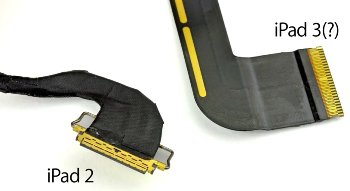
iFixit couldn't power up the screen with iPad 2 hardware, as the current iPad display uses a different connector than the one MacRumors obtained. This suggests that the new display will have different power requirements, and will hamper modders from getting a higher-resolution display with thieir older tablets. But take a look for yourself.

Quoted from "PCWORLD"

Saturday, February 25, 2012

DOWNLOAD ! USB SAFELY REMOVE 5 FINAL (Full Version)


USB Safely Remove is a USB device manager.


USB Safely Remove saves time and extends user abilities on active work with flash-drives, portable drives, card readers and and other gadgets.


USB Safely Remove gives a handy safe removal, devoids of annoyances of the native Windows tool, displays what programs prevent stopping a device, hides drives of empty card reader slots, allows to return a stopped devices back and has many other features for comfortable work with hot-plug devices (USB, SATA, Firewire, PCMCIA).


Here are some key features of "USB Safely Remove":

· Safely remove in one click!
· Displaying processes which are preventing USB device from being stopped
· Powerful command line support
· 3 methods to stop devices.
· Automatically assigning hotkeys.
· Forbidding stopping any device.
· Customizable names and descriptions for devices.
· Notifications about connecting/disconnecting devices with the help of a balloon tooltip.
· Playing sounds or running external programs when devices are connecteddisconnected.
· Restricting access to the features of the program with a password.
· Loading custom images for devices
· Ability to operate SATA drives

Requirements:

· 10 MB RAM
· 10 MB HDD space
· USB support


Here Some Screen Shot :


Right Click Feature

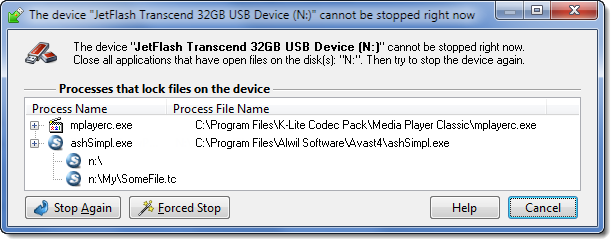
Unlocker Windows

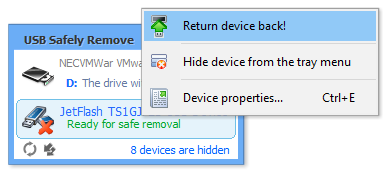
Return Device Back!
One Hotkey for Stopping


DOWNLOAD Installation + Crack Here!

DOWNLOAD ! Trend Micro Titanium Internet Security 2012 Full Version!


Trend Micro Titanium is powered by the Trend Micro Smart Protection Network infrastructure, our cloud security infrastructure that stops threats in cyberspace or "the cloud." Smart Protection Network monitors the Internet 24/7, worldwide.


It gathers and analyzes threat data, blocking viruses and other malware BEFORE they can reach your PC. And because processing is done in the cloud, Titanium uses less of your PC’s memory and disk space, so it won’t slow you down.


You will be able to securely send emails, make payments and bank transactions, and even share photos online, resting assured that your privacy and documents are protected by Trend Micro Titanium Internet Security.


Titanium Internet Security Gives You What You Want:
Strong protection — uses cloud security technology and real-time antivirus scanning to defend you immediately, without waiting for updates and downloads
Easy to use and understand Internet security — has friendly display screens and set-it-and-forget-it simplicity
Light demands on your PC’s resources — has a small "footprint" so it doesn’t affect computer performance


Key Features and Benefits Include:
Cloud technology — leverages the Trend Micro Smart Protection Network plus real-time antivirus scanning to provide always-on Internet protection to keep you safe from the latest and ever-evolving malware threats
Automatic protection — removes the guesswork of protecting your PC, intelligently and immediately reacts to threats
Simple installation — it takes just a few clicks
Streamlined interface — it is easy to understand and simple to manage

Strong Antivirus Protection Made Simple:
· From the main Titanium Internet Security console screen, you can easily run an antivirus scan or get up-to-the-minute status reports on your computer’s security.


Easy-to-Understand Security Reports:
· Easy-to-read graphic reports provide you with all the details about the Internet threats that attack your computer. You can drill down into detailed security logs with just one click.


Friendly, Adjustable Parental Controls:
· Without having to look over their shoulders, you can easily protect your children from inappropriate websites, limit their time on the Internet, and see detailed activity reports about what they do online. The Parental Controls can be quickly customized.


Data Theft Prevention:
· Prevent hackers and spyware from stealing credit card numbers, passwords, email addresses, and other sensitive data.

Requirements:


· Windows 7 Family, Service Pack 1 or higher: CPU 1 GHz, Memory 1 GB, Disk Space 500 MB
· Windows Vista Family, Service Pack 1 or higher: CPU 800 MHz (1 GHz recommended), Memory 512 MB (1 GB Recommended), Disk Space 500 MB
· Windows XP Family (32 bit), Service Pack 3 or higher: CPU 450 MHz (800 MHz recommended), Memory 256 MB (512 MB Recommended), Disk Space 500 MB
· Web Browser: Microsoft Internet Explorer 7.0 or 8.0
· Display: High-color display with a resolution of 640x480 pixels or higher
· PDF Reader: Any
· Internet Speed: Broadband or equivalent recommended

DOWNLOAD Installation x32 bit Here!


DOWNLOAD Installation x64 bit Here!


DOWNLOAD Key for Full Version Here!

Friday, February 24, 2012

Initial Impressions: Dell XPS 13

We have a final production unit of Dell's Ultrabook, and it's one of the nicest PCs the company has produced in years.

Back at CES, we gave you the details on Dell’s first Ultrabook, theXPS 13. At the time, I said "it may be the best laptop Dell’s made in years," based on a very limited demonstration. Now I have the final production model in my hands, and I’m pleased to say my impression stands. The XPS 13 is by no means the perfect laptop, but my initial hands-on impression is extremely positive. A full review with benchmarks and a lot more hands-on use will be forthcoming, but I wanted to let you know what I think before the system goes on sale next week.

Dell makes a big deal about the size of the XPS 13, and they’re right to: it’s sort of impressive. While slightly thicker than the 13-inch Macbook Air, and just a touch heavier (we measured 2 pounds 15.8 ounces, where the Air is 2 pounds 15.1 ounces), the XPS 13 actually has a significantly smaller footprint than Apple's hot laptop. While the screen is the same size as the 13-inch Air, the XPS 13 is actually less wide and less deep. An Ultrabook that’s acctually smaller than the comparable Macbook Air is no mean feat, and it’s definitely not the kind of thing you expect from Dell.


Speaking of the display, its resolution is 1366x768, which is a bit lower than the 1440x900 resolution of the Air. It’s also a 16:9 aspect ratio instead of 16:10 on the Apple product, so it’s slightly wider and slightly shorter. It gets quite bright, though the glossy screen makes it hard to use in bright, direct sunshine. Off-axis viewing is reasonable, though I've seen better, and I'm spoiled by the IPS displays on premium tablets.

The system I’m testing is the entry-level $999 model, which features a 1.6GHz Core i5 processor, 4GB of RAM, and a 128GB SSD. The entry-level Macbook Air costs $300 more and gives you the same RAM and SSD, but a very slightly faster (1.7GHz) Core i5 CPU. Dell also offers configurations with a 256GB SSD for $1299, and with a 256GB SSD and Core i7 2637M for $1499.

The performance of this entry-level model feels quite snappy. The system boots up quickly, and wakes up from sleep in just a couple seconds when you open the lid. Applications launch quickly. It’s the performance you expect from a good Core i5 CPU and fast SSD.
The keyboard is actually quite nice. The key travel is sort of short, but that’s a problem with all these super-thin laptops. If found it quite easy to type quickly and accurately, which is a step up from a lot of Ultrabook keyboards. Oh, and it’s backlit, too. The trackpad is a new “clickpad” that clicks anywhere over the entire surface. Even near the top of the trackpad you get a satisfying “click” to let you know you’ve...well...clicked. The pad on my review unit is a little finicky, but I'm promised a driver update any minute now that should improve sensitivity and scrolling.

The software loadout bears mentioning. The XPS 13 test system I’m using has a very clean build, with no Dell Stage software. JThere's only the Dell support stuff, a Webcam utility, Skype, McAffee, and Windows Live Essentials. Boot up for the first time and you won't see much on the desktop or taskbar. I’ve been informed that the very first batch of XPS 13 systems will have the usual Dell software loadout with Stage, but that the second run of systems (shipping around April) will feature the very lean software configuration I’m using. I’m thrilled to see Dell trim the fat; these days, people know how to get the software they like on their PCs.

After spending an afternoon with the XPS 13, my opinion is just as favorable as it was when I first laid eyes on it at the start of the year. It’s a system that is so un-Dell-like (and I mean that in the best possible way) that I’ve actually carried it around the office to show it to coworkers, most of whom are similarly impressed. I reserve final judgement until I get some hard performance numbers and spend a lot more time with it, but for now, it feels like the only thing stopping me from running out and buying one myself is the knowledge that Intel’s Ivy Bridge chips will be shipping in a few months, and I really want a laptop with one of those.
quoted from "PCWORLD"

DOWNLOAD ! WINDOWS 8 DEVELOPER PREVIEW !


Windows 8 Developer Preview downloads

The Windows 8 Developer Preview is a pre-beta version of Windows 8 for developers. These downloads include prerelease software that may change without notice. The software is provided as is, and you bear the risk of using it. It may not be stable, operate correctly or work the way the final version of the software will. It should not be used in a production environment. The features and functionality in the prerelease software may not appear in the final version. Some product features and functionality may require advanced or additional hardware, or installation of other software.

Note: You can't uninstall the Windows 8 Developer Preview. To go back to your previous operating system, you must reinstall it from restore or installation media.

Windows 8 Developer Preview with developer tools English, 64-bit (x64)

DOWNLOAD (4.8 GB)
Sha 1 hash - 6FE9352FB59F6D0789AF35D1001BD4E4E81E42AF
All of the following come on a disk image file (.iso). See below for installation instructions.
  • 64-bit Windows 8 Developer Preview
  • Windows SDK for Metro style apps
  • Microsoft Visual Studio 11 Express for Windows 8 Developer Preview
  • Microsoft Expression Blend 5 Developer Preview
  • 28 Metro style apps including the BUILD Conference app

Windows 8 Developer Preview English, 64-bit (x64)

DOWNLOAD (3.6 GB)
Sha 1 hash – 79DBF235FD49F5C1C8F8C04E24BDE6E1D04DA1E9
Includes a disk image file (.iso) to install the Windows 8 Developer Preview and Metro style apps on a 64-bit PC.
Note: This download does not include developer tools. You must download the Windows 8 Developer Preview with developer tools 64-bit (x64) to build Metro style apps.

Windows 8 Developer Preview English, 32-bit (x86)

DOWNLOAD (2.8 GB)
Sha 1 hash - 4E0698BBABE01ED27582C9FC16AD21C4422913CC
Includes a disk image file (.iso) to install the Windows 8 Developer Preview and Metro style apps on a 32-bit PC.
Note: This download does not include developer tools. You must download the Windows 8 Developer Preview with developer tools 64-bit (x64) to build Metro style apps.

Live SDK

DOWNLOAD (1.3 MB)
The Live SDK provides a set of controls and APIs that enable applications to integrate Single Sign On (SSO) with Windows Live ID and access information from SkyDrive, Hotmail and Windows Live Messenger. To learn more and to download the SDK, go to the Live Connect Dev Center.

System Requirements

The Windows 8 Developer Preview works great on the same hardware that powers Windows Vista and Windows 7:
  • 1 gigahertz (GHz) or faster 32-bit (x86) or 64-bit (x64) processor
  • 1 gigabyte (GB) RAM (32-bit) or 2 GB RAM (64-bit)
  • 16 GB available hard disk space (32-bit) or 20 GB (64-bit)
  • DirectX 9 graphics device with WDDM 1.0 or higher driver
  • Taking advantage of touch input requires a screen that supports multi-touch
  • To run Metro style Apps, you need a screen resolution of 1024 X 768 or greater

Notes about installing the Windows 8 Developer Preview

A clean install is supported on all builds, but you can upgrade if you are installing a download without the developer tools. You will receive the full set of migration options when setup is launched in Windows. To dual-boot, you must first boot from media and choose an alternative partition.

How to install the Windows 8 Developer Preview from an ISO image

The Windows 8 Developer Preview is delivered as an .iso image that must be converted into installation media stored on a DVD or a USB flash drive. On Windows 7, the easiest way to convert this file is to use Windows Disc Image Burner. On Windows XP and Windows Vista, a third-party program is required to convert an .iso file into installable media—and DVD burning software often includes this capability.
Note: The .iso file that contains the developer tools requires a large capacity DVD called a DVD-9, as well as a DVD burner that can handle dual-layer (DL) DVDs. Most modern burners should be able to handle this format.